Bulk Delete Google Workspace Org Units

SheetOps Google Sheets Add-on
This guide is for the official SheetOps add-on. Install it to manage Google Workspace at spreadsheet speed.
Pruning unused organizational units (OUs) and restructuring domain tree folders in the Google Admin Console requires manually deleting nodes one-by-one from the bottom up. SheetOps automates bulk OU deletion in Google Sheets, allowing admins to safely stage and validate OU tree removals.
Workspace Organization & Security: Deleting an OU is a permanent administrative action. Before deleting, you must ensure it has no users, devices, or nested child OUs assigned to it. SheetOps provides a visual staging safety net to verify your selections and validate constraints before executing these permanent API calls.
Quick Answer: To bulk delete Google Workspace Organizational Units with SheetOps: fetch your OUs to the sheet, change their Status to Deleted, select the Apply Changes checkboxes, and execute the update. This immediately deletes the OUs from your Google Workspace domain.
Understanding OU Deletion Mechanics
Changing an OU's status to Deleted in the spreadsheet instructs SheetOps to make a delete API call to the Google Directory API's orgunits.delete endpoint. SheetOps applies these updates sequentially and logs the status of each deletion directly in the spreadsheet in real time.
Google Admin Console vs. GAM vs. SheetOps for OU Deletion
While you can delete OUs manually in the Google Admin Console or write terminal scripts using GAM, SheetOps provides a safer, faster way to manage deletions at scale:
| Criteria | Admin Console | GAM CLI | SheetOps |
|---|---|---|---|
| Bulk Operations | Manual deletion or script uploads | Scripted command-line commands | Familiar copy-paste and fill-handle drag in spreadsheets |
| Safety Net | None (deletions are immediately executed) | None (deletions are immediately executed) | Live validation and visual staging (highlighted in yellow) |
| Change Tracking | Admin audit logs in console | Command line output logs | Real-time status updates directly in the sheet's Change Log column |
Quantitative Comparison: IT audits show that manually deleting 50 nested OUs in the Admin Console requires up to 150 clicks and takes approximately 20–30 minutes due to page refreshes and error-checking. Using SheetOps, administrators can perform the same cleanup in less than 2 minutes by staging and validating the entire tree structure in a single spreadsheet sync.
How to Bulk Delete Google Workspace OUs
1. Prepare Your Spreadsheet
Go to Extensions → SheetOps → Org Units. Selecting this automatically fetches and loads all existing Google Workspace organizational units in your domain onto the spreadsheet, setting up the required columns, validation rules, and checkboxes.

2. Modify Status to Deleted
In the Org Units sheet, locate the Status column:
- For the first organizational unit you want to delete, select Deleted from the dropdown menu.
- Bulk Action Tip: Instead of manually selecting the dropdown for every single row, you can select the "Deleted" value on the first row, click and hold the fill handle (the small square in the bottom-right corner of the cell), and drag it down over the other OU rows.
- All cells with pending updates will highlight yellow.
Deleting Manually Entered Rows: If you add a new row manually to delete an organizational unit (instead of modifying a fetched row), only the Org Unit Path is required (along with selecting Deleted in the Status column). You do not need to fill in any other columns.
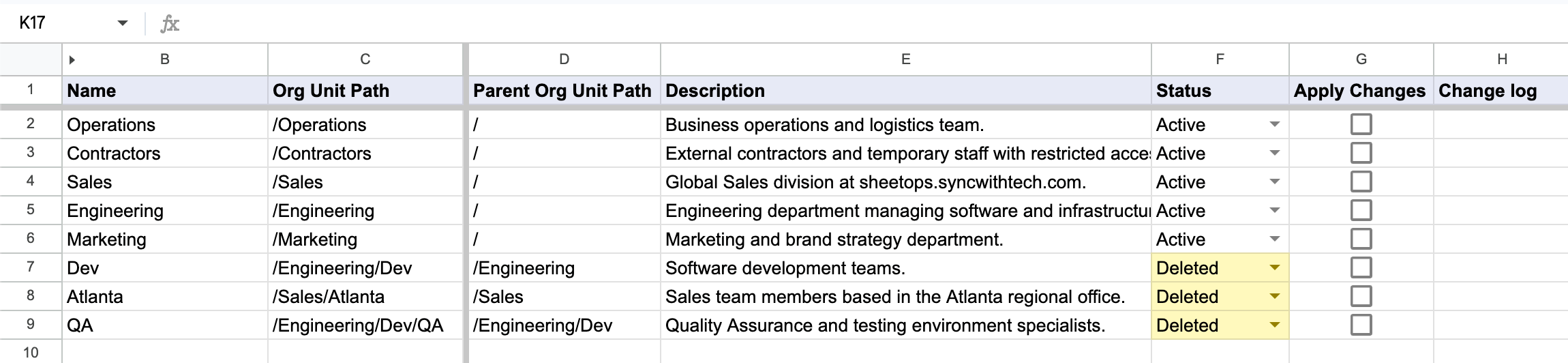
Dependencies Prevent Deletion: An organizational unit deletion API call will fail if the unit still has users or devices assigned to it, or if it has child OUs nested underneath it. You must move all users and sub-OUs before deleting the parent unit.
3. Mass-Selecting Organizational Units for Batch Removal
To check all target OU paths for deletion in a single batch operation:
- Click the first checkbox cell in the Apply Changes column alongside your designated OU deletion row.
- Select the full group of target OU path rows:
- Cursor Drag: Hold the left mouse button and drag across the required checkbox cells.
- Shift + Click: Hold Shift on your keyboard while clicking the last OU row in your selection list.
- Press Spacebar to toggle all selected OU deletion checkboxes simultaneously.
4. Authorizing Organizational Unit Hierarchy Deletion
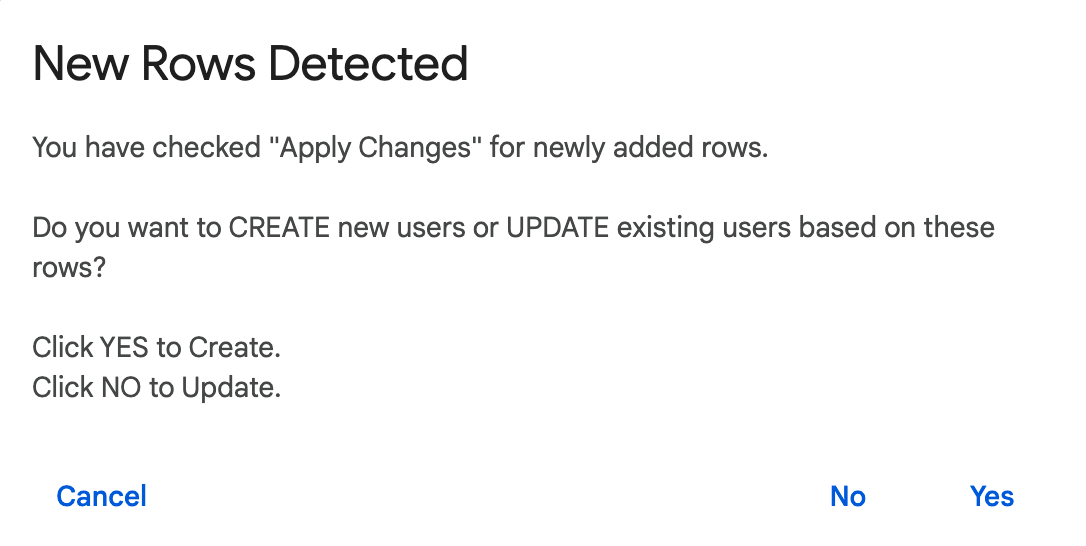
Upon striking Spacebar, a confirmation modal will prompt for action. Select No (Update) to trigger the deletion sequence. SheetOps contacts the orgunits.delete API endpoint, validating that target nodes are childless and empty of assigned users before removing the OU paths.
5. Reviewing Organizational Unit Removal Status Logs
As OU deletion requests process sequentially in the background:
- Pending yellow highlights vanish line-by-line as API calls succeed.
- The Change log column provides detailed execution results:
- ✓ Deleted (highlighted in soft green) when the organizational unit is successfully removed from your Google directory.
- ✗ error_message (highlighted in soft red) if assigned users or active child OUs block deletion.
Troubleshooting & Best Practices
- Constraint Errors: If you try to delete an OU with active users or nested child OUs, the Directory API will return an error. Ensure you move users using Bulk Move Users first.
- Sequential Deletion: When deleting a nested structure (e.g.
/Salesand/Sales/East), you must delete the child OUs before the parent. In your spreadsheet, list the child OUs above the parent OU, or run deletions of child OUs first. - Admin Permissions: Deleting OUs requires administrative access. The admin account running SheetOps must have active organizational unit write scopes (
https://www.googleapis.com/auth/admin.directory.orgunit).
Frequently Asked Questions (FAQ)
Can I restore a deleted Organizational Unit?
No. The Google Workspace Directory API does not support restoration for deleted OUs. Once an OU is deleted, its settings and configurations are permanently lost, and it must be recreated from scratch.
Why did my Org Unit deletion fail in SheetOps?
An Org Unit deletion API call will fail if the unit still has users or devices assigned to it, or if it has child OUs nested underneath it. You must move all users to another OU and delete all sub-OUs before deleting the parent unit.
Can I see who deleted an OU in SheetOps?
SheetOps does not store deletion history. However, all admin activities performed via the Admin Directory API are recorded in your Google Workspace Admin Audit Log in the Google Admin Console.
Last updated: June 19, 2026

Ready to manage Workspace at spreadsheet speed?
Install SheetOps from the Google Workspace Marketplace today and start performing bulk directory updates, onboarding, and audits directly inside Google Sheets.